
Why most Shopify speed advice makes stores slower
Search for how to speed up a Shopify website and a good share of what comes back is an app that promises to do it for you. Two of the results on the first page are app listings. Several of the articles recommend installing something.
That is the wrong direction, and on most of the stores I look at it is the reason they are slow in the first place. Shopify hosting is fast. It is the fifteen scripts running on top of it that are not. Adding a sixteenth script whose job is to compensate for the other fifteen does not usually end well.
One of those articles recommends a caching plugin that only exists for WordPress. Another tells you to choose a faster host, on a platform where you cannot choose your host. That is the level of the advice ranking today, which is the main reason I wrote this.
What follows is what actually moves the numbers on a Shopify store, in the order I work through it as a Shopify SEO consultant, with the measuring steps included rather than assumed. Nothing here requires installing anything.
What Shopify already handles, and what you cannot fix
Half the speed advice written for the general web does not apply here, so it is worth knowing where the boundary sits before you spend a weekend on something you do not control.
Shopify runs your store on its own infrastructure behind a global CDN. You cannot change the host, you cannot move to a faster server, and you cannot add a caching layer. Static assets are already served compressed and cached. Images uploaded to Shopify are served through its image CDN, which resizes them and serves modern formats to browsers that support them. HTTPS and HTTP/2 are handled. Checkout, on any plan below Plus, is not yours to modify at all.
So every recommendation about hosting, server response time, database optimisation, browser cache headers or installing a CDN is noise on this platform. Server response time is worth glancing at, but if it is bad the cause is almost always a theme doing too much work per request, not the server.
What you do control is the theme, the apps, the images you upload and the third-party scripts you or a marketer added. That is the whole surface area. Everything below lives inside it.
Knowing which side a problem sits on saves you from the most common wasted weekend in Shopify speed work.
- Theme code and sections
- Apps and their scripts
- Images you upload
- Tracking and marketing tags
- Hosting and servers
- The CDN and caching
- Image delivery format
- Checkout below Plus
- Choosing a faster host
- Cache plugins
- Database tuning
- Adding your own CDN
Every article that tells you to pick a faster host for a Shopify store was written for a different platform and adapted badly.
Measure the right number before you change anything
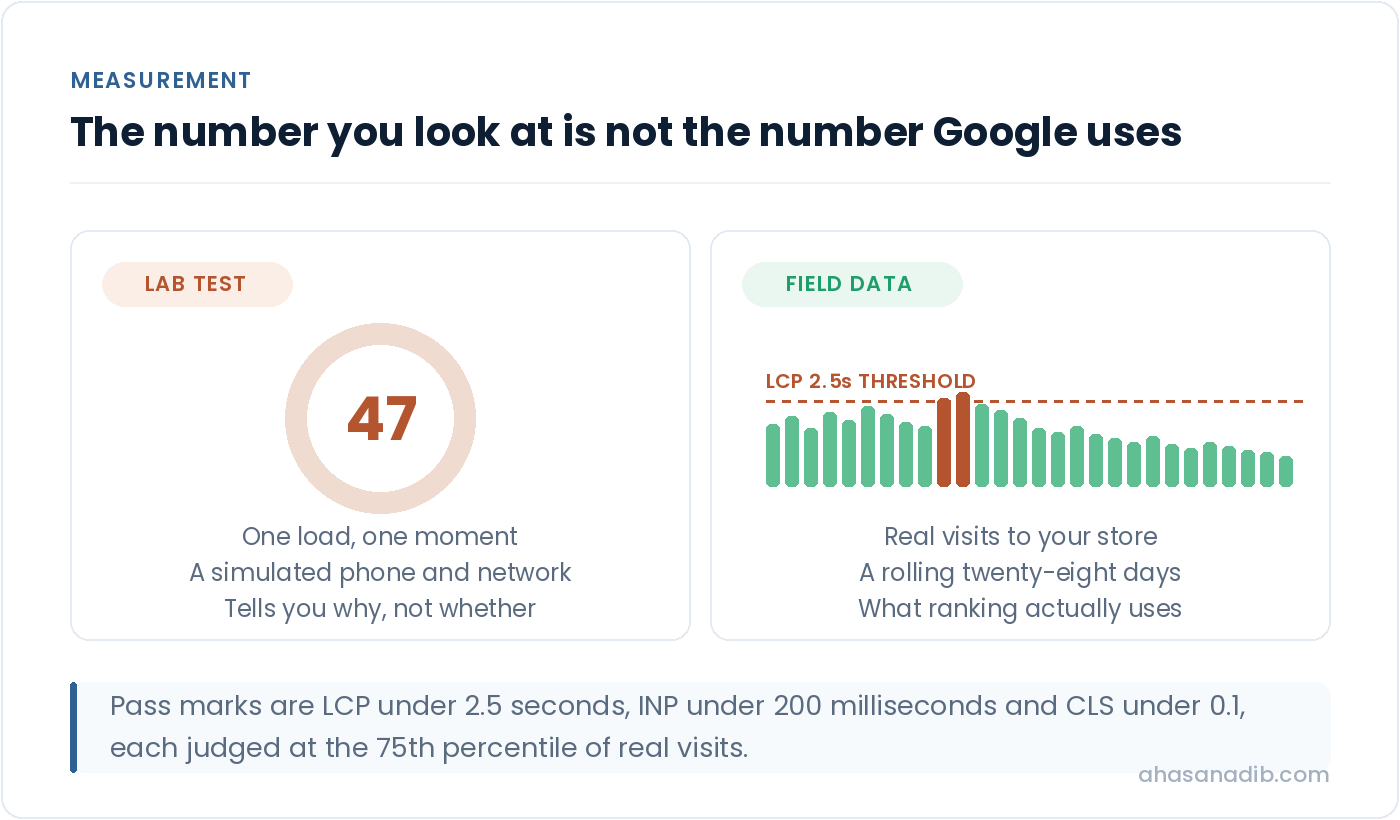
Most store owners open PageSpeed Insights, see a red number, and start fixing whatever the tool listed first. That number is a simulation. It is one load, on a modelled slow device, on a modelled slow connection, at one moment. It is a diagnostic, not a score you are being graded on.
What Google actually uses is field data: Core Web Vitals collected from real visits to your store over a rolling twenty-eight day window. Three measurements matter. Largest Contentful Paint is how long until the biggest thing on screen appears, and should be under 2.5 seconds. Interaction to Next Paint is how long the page takes to respond when somebody taps something, and should be under 200 milliseconds. Cumulative Layout Shift is how much the page jumps around while loading, and should be under 0.1. Each is judged at the 75th percentile, meaning three quarters of your visits need to clear the bar.
Shopify reports the same three metrics in the Web Performance section of your admin, drawn from your real visitors rather than a simulation. That is the report to trust. If you remember chasing a 0 to 100 speed score in the Shopify admin, that framing has gone, and it was never what Google ranked on anyway.
Use both, for different jobs. Field data tells you whether you have a problem and whether a fix worked. Lab tools tell you why, because they show you the waterfall and name the element causing it. Reading a lab score as a grade is how people end up optimising things no real visitor was ever slowed down by.
One practical detail people miss: field data lags. Because the window is twenty-eight days, a fix you shipped on Monday will not show fully for a month. Expect that, or you will conclude a good change did nothing and undo it.
Find out what each app is actually costing you
Every guide on this subject tells you to audit your apps. None of them tells you how, which makes the advice useless, because “remove the ones you do not need” assumes you already know which ones are expensive. Here is the procedure I use. It takes about twenty minutes and needs nothing but Chrome.
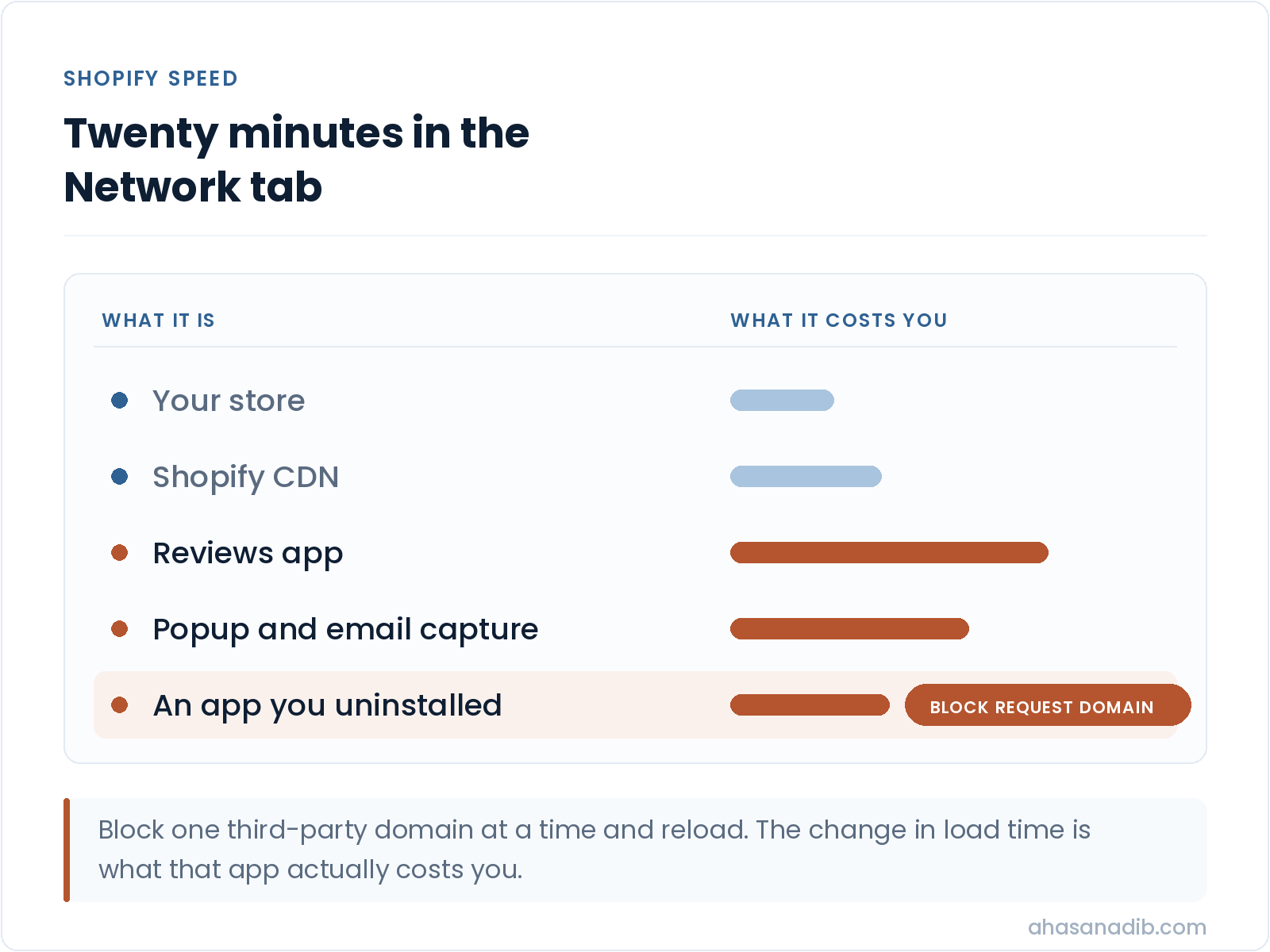
Open your store in an incognito window, open DevTools, and go to the Network tab. Reload with the cache disabled. Sort the requests by size, then look at the Domain column rather than the file names. Your own store domain and Shopify’s CDN are expected. Everything else is a third party, and each distinct domain is usually one app or one tracking tag.
Now the part that gives you real numbers. Right click any request from a third-party domain and choose Block request domain. Reload. Watch what happens to the load time and to the point at which your banner image appears. Do that one domain at a time, writing down the difference each time. Within twenty minutes you will have a list of your apps ranked by what they actually cost, measured on your store rather than guessed at.
Two things usually surprise people. The first is that the worst offender is rarely the app anyone suspected, and is often something a marketer added and forgot. The second is how many domains appear that nobody at the company can identify.
For a second angle, open the DevTools command menu with Control Shift P, type Coverage, and record a page load. It shows how much of each script was actually executed. A file that is ninety per cent unused is doing almost nothing for you while costing full price to download and parse.
The question to ask about each result is not whether the app is useful. It is whether it is useful enough to justify what it just cost you, on the page where it loads. A review widget on product pages might be worth it. The same widget loading on every page including the homepage is not.
Remove what uninstalling left behind
Uninstalling an app from your admin does not reliably remove the code it put in your theme. This is the single most common thing I find on stores that have been running for a few years, and it is why so many of them load scripts for tools the business stopped paying for long ago.
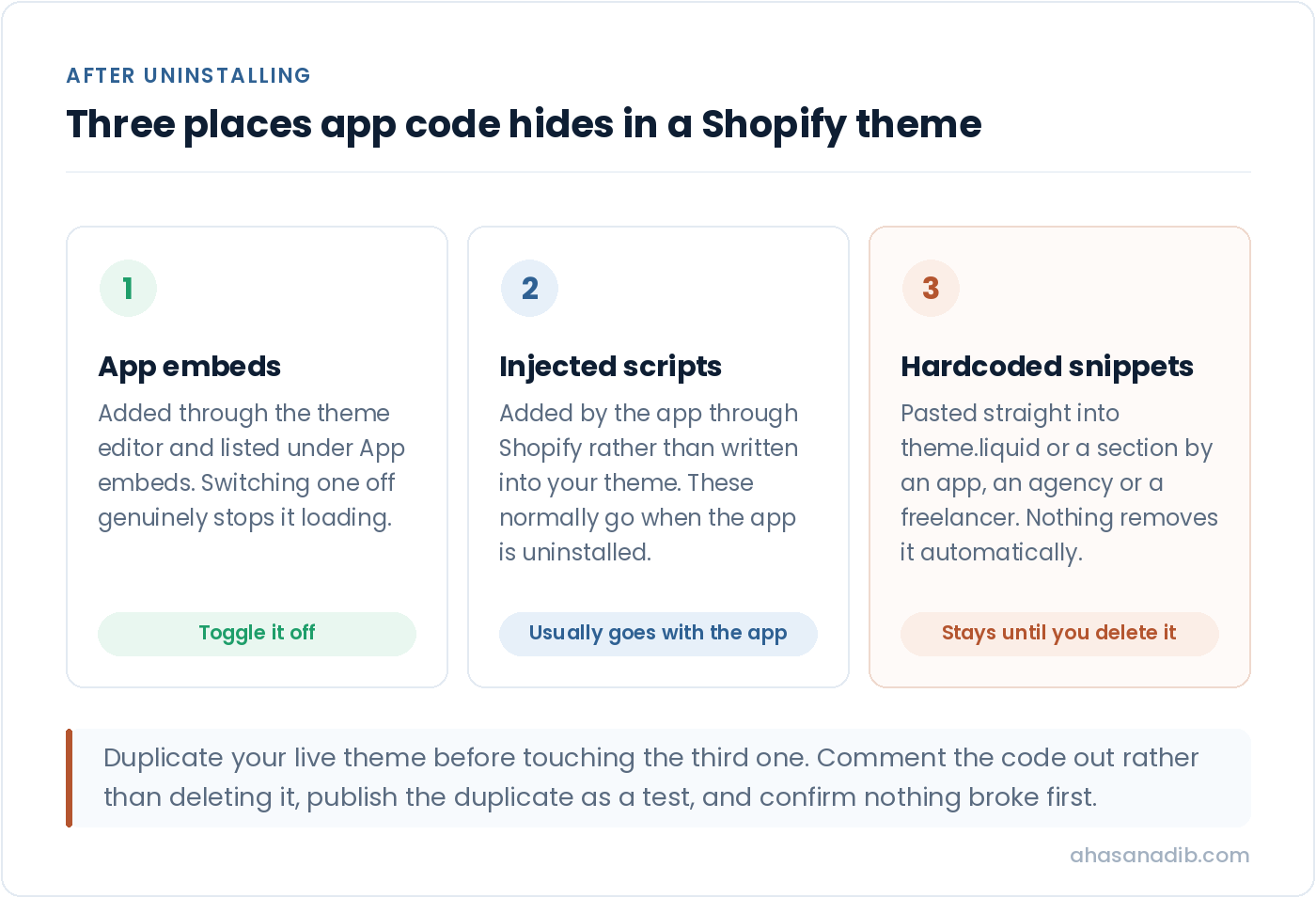
App code reaches your storefront through three different routes, and they are removed in three different ways.
App embeds are the modern route. They appear in the theme editor under App embeds, and toggling one off genuinely stops it loading. Check this list first, because anything switched on here for an app you no longer use is a free win.
Injected scripts are added by the app through Shopify rather than written into your theme. These normally do disappear when the app is properly uninstalled, though they can survive if the uninstall was interrupted or the app was removed by deleting it from a theme rather than from the admin.
Hardcoded snippets are the problem. Some apps, and most agencies and freelancers, paste code directly into theme.liquid or into a section or snippet file. Nothing removes that automatically. It sits there until a person deletes it.
To find those, duplicate your live theme first so you have something to roll back to. Then open the code editor and search theme.liquid for script tags pointing at domains you do not recognise, cross-referencing the list of third-party domains you built in the Network tab. Check any file whose name matches an app you have removed. Comment code out rather than deleting it, publish the duplicate as a test, and confirm nothing broke before you make it permanent.
The Shopify SEO checklist covers this as two of its forty-five checks if you would rather work through it as a list you can tick off.
Fix the hero image before anything else
On the large majority of Shopify stores, the Largest Contentful Paint element is the banner image at the top of the homepage, or the first product image on a product page. That single image is usually the difference between passing and failing the metric on mobile.
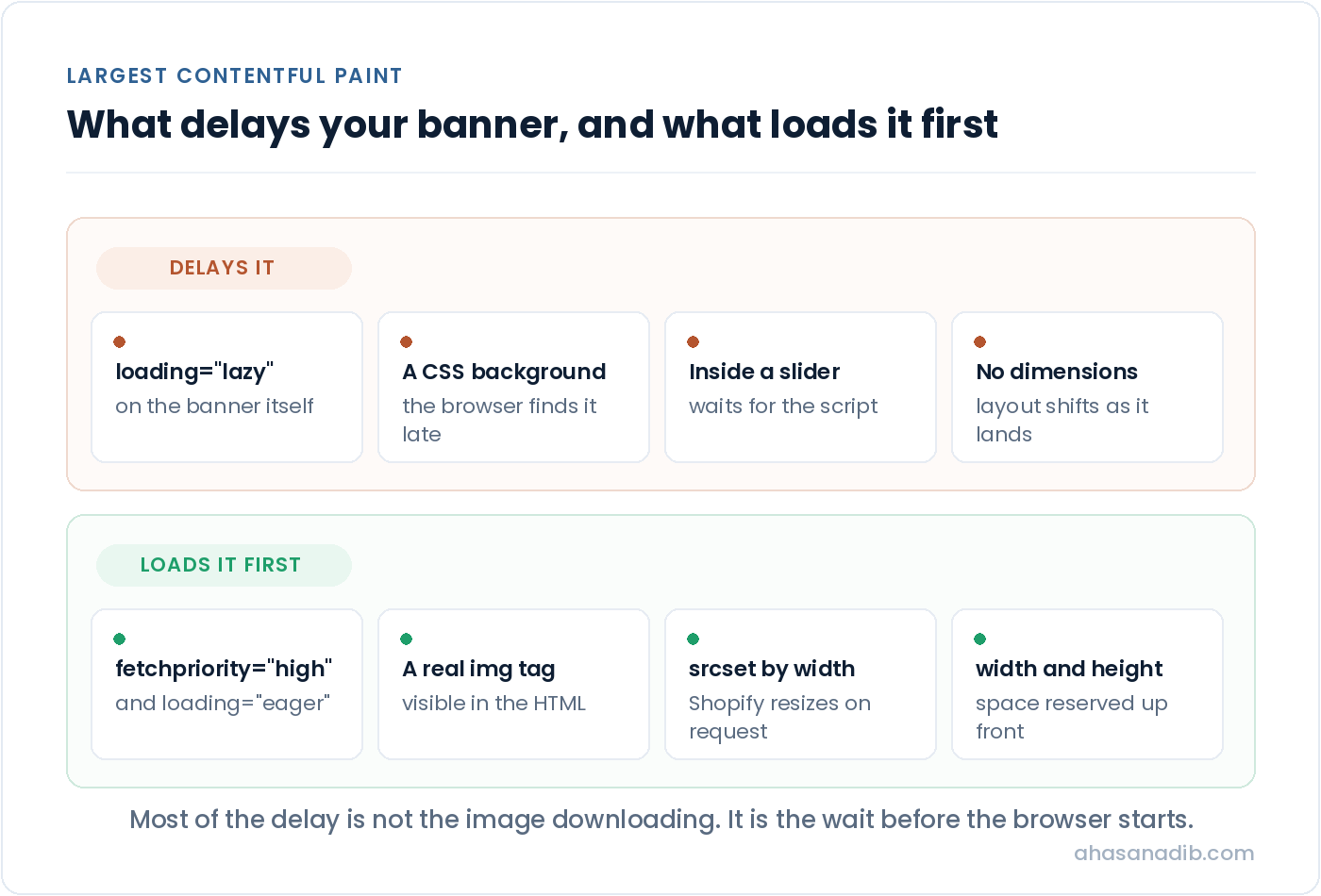
Find out which element it is rather than guessing. PageSpeed Insights names the LCP element directly in its diagnostics, and Chrome DevTools will highlight it in the Performance panel. Google’s own guidance on optimising Largest Contentful Paint is the reference worth reading if you want the mechanics in full, and it makes a point most Shopify articles miss: a large share of LCP time is not the image downloading, it is the delay before the browser even starts.
Four things fix it, in order of how often they are the problem.
Stop lazy loading it. Themes frequently apply loading=”lazy” to every image including the banner. On a below-the-fold image that helps. On your LCP element it actively delays the one thing the metric is measuring. It should load eagerly, and adding fetchpriority=”high” tells the browser to fetch it ahead of the queue.
Make sure the browser can find it early. If the image is set as a CSS background, or only appears after a slider script runs, the browser cannot discover it until late. An image in the HTML as a normal img element, visible in the initial markup, starts loading far sooner. This is why replacing a homepage slider with a single static banner often produces a bigger improvement than any amount of compression.
Serve it at a sensible size. Shopify will resize on request through its image CDN, so a responsive srcset with widths appropriate to the layout costs nothing to set up and stops phones downloading a 2000 pixel wide file to display at 390.
Give it dimensions. Width and height attributes on the image reserve the space before it loads, which keeps Cumulative Layout Shift down at the same time.
Theme-level fixes that keep working
Once the apps are dealt with and the hero loads properly, the remaining wins are in the theme. These are smaller individually but they hold, and they do not need revisiting every month.
Defer the scripts that do not need to run immediately. Anything that powers behaviour below the fold, or that only matters after somebody interacts, can carry the defer attribute so it stops blocking the initial render. Chat widgets, review carousels and popup tools are the usual candidates.
Cut the number of sections on your homepage. Themes ship with everything enabled so they demo well, and most stores keep sections they never look at. Each one is markup, usually images, and often its own script. Turning off three unused sections is a real reduction with no design cost, because nobody was seeing them.
Reconsider custom web fonts. A font file has to download before text renders in it, and stores routinely load four weights when they use two. Trimming to the weights you actually use is the easy version. Moving to a system font stack is the aggressive version and is not always the right call for a brand, but it removes the request entirely.
Paginate large collections. A collection rendering two hundred products in one response is doing a lot of work per request, and it slows the page for a visitor who was only going to look at the first twelve.
Keep the theme current. An abandoned theme accumulates problems nobody upstream is fixing, and newer versions of the reference themes are meaningfully lighter than what was shipping a few years ago.
What to skip on Shopify
Some of the most commonly repeated advice is either already handled or not possible here, and time spent on it is time not spent on the things above.
Minification is largely handled for you on assets Shopify serves, and hand-minifying theme files makes them painful to maintain for a saving you will struggle to measure.
Browser caching is set by Shopify and you cannot change the headers. Any article telling you to adjust cache expiry on a Shopify store is recycled WordPress advice.
Speed optimisation apps deserve their own warning. Most work by injecting their own JavaScript to prefetch pages or defer other scripts. Sometimes that helps. Often it adds a script to a store whose problem is too many scripts, and it makes diagnosis harder because you now have a layer sitting between you and the truth. If your store is slow because of eleven apps, the fix is fewer apps.
Image compression apps are the narrow exception worth considering, because they act on upload rather than at render time and add nothing to the page. Even then, sizing images correctly before upload achieves the same result for free.
Most of this holds on any platform, incidentally. The difference on Shopify is how much of the stack is closed to you, which is why the same list for eCommerce SEO more broadly includes server and caching work that simply is not available here.
How to tell whether any of it worked
Take a screenshot of your Web Performance report before you start, so you have the numbers as they were. Then change one category of thing at a time. If you remove four apps, fix the hero image and swap the theme in the same week, you will never know which one mattered, and you will not know what to undo if something breaks.
Wait for the field data. The twenty-eight day window means a fix shipped today is not fully reflected for a month, and the curve moves gradually rather than jumping.
Then measure the thing that actually pays you. Speed work is worth doing because it affects whether people stay and buy, so the number to watch is revenue per landing page for the templates you changed. A store that passed Core Web Vitals and sold the same amount has bought itself a technical improvement and nothing else. That is not a failure, but it is not the win either, and knowing the difference is what tells you whether to keep going. The results page shows what that looks like when it goes right.
If speed turns out not to be your constraint, it is worth checking whether something structural is. On Shopify the usual candidates are duplicate product URLs and thin collection pages, which I covered in the Shopify SEO tips guide.
Frequently asked questions
Why is my Shopify store slow when Shopify hosting is fast?
Because hosting is not usually the bottleneck. Shopify serves your store from its own infrastructure behind a global CDN, and that part is genuinely quick. What slows a store down is everything layered on top: app scripts, tracking tags, an oversized banner image and a theme loading features you do not use. The hosting is fine. The queue in front of it is the problem.
Do I need a speed optimization app for Shopify?
Usually not, and on a store carrying a lot of apps the app is often the wrong answer. Most speed apps work by adding their own JavaScript to prefetch or defer other scripts. If your problem is too many scripts, adding one more rarely fixes it and makes diagnosis harder. Work out what your existing apps cost first, then decide.
What is a good Shopify page speed score?
The score is the wrong target. Google ranks on Core Web Vitals from real visitors, not on a lab score. Aim for Largest Contentful Paint under 2.5 seconds, Interaction to Next Paint under 200 milliseconds and Cumulative Layout Shift under 0.1, measured at the 75th percentile in your Shopify Web Performance report. A green lab number on your laptop tells you nothing about somebody loading your store on mobile data.
How do I find which app is slowing my Shopify store?
Open your store in an incognito window with Chrome DevTools on the Network tab, reload with caching disabled, and look at the Domain column. Each third-party domain is usually one app. Right click a request, choose Block request domain, reload, and note the difference. Repeat one domain at a time and you have your apps ranked by what they actually cost on your store rather than in theory.
Does uninstalling a Shopify app remove its code?
Not always. App embeds stop loading when toggled off, and scripts injected through Shopify normally go with the app. But code that was pasted directly into theme.liquid or a section file stays until somebody deletes it by hand. That is why stores routinely load scripts for apps they stopped paying for years ago.
How long does it take for speed changes to show up?
The fix is live immediately, but the reporting is not. Core Web Vitals are collected over a rolling twenty-eight day window, so a change you ship today will not be fully reflected for about a month, and it moves gradually rather than stepping. Lab tools show the change straight away, which is what makes them useful for confirming a fix landed.
Does site speed affect Shopify SEO rankings?
It is a ranking signal, but a modest one, and it will not lift a page that has nothing else going for it. Speed matters more for what it does to behaviour: people leaving before the page renders never see the product, whatever position you hold. Treat it as removing friction rather than as a way to outrank someone. Speed is one line on a much longer list, and the technical SEO audit checklist covers the rest of it.
Where to start
If you do one thing from this, run the twenty-minute Network tab exercise. It is the only step here that gives you numbers specific to your store rather than general advice, and it usually names the problem in the first ten minutes.
Then fix the hero image, because it is the single element most likely to be failing your Largest Contentful Paint, and the fix is a theme change rather than an ongoing cost.
Do those two, wait a month, and look at the field data before touching anything else. Most stores do not need the rest of the list.
Not sure what is actually slowing your store?
Bring it to a free call. We will look at the numbers together and I will tell you honestly whether speed is your problem or whether something else is costing you more.
Book a free call →